vibemon-app
VibeMon



Real-time status monitor for AI assistants with pixel art character display.
See at a glance what your AI assistant is doing — thinking, working, or waiting for input. A cute pixel art character visually represents the current state.
Supported Tools
| Tool | Description |
|---|---|
| Claude Code | Anthropic’s official AI coding assistant |
| Kiro | AWS’s AI coding assistant |
| OpenClaw | Open-source computer use agent |
What It Monitors
| Field | Description | Example |
|---|---|---|
| State | Current activity state | working, idle, notification |
| Project | Active project directory | vibemon-app |
| Tool | Currently executing tool | Bash, Read, Edit |
| Model | Active model | Opus 4.5, Sonnet |
| Memory | Context window usage | 45% |
Platforms
| Platform | Description | Best For |
|---|---|---|
| ESP32 Hardware | Dedicated LCD display (172×320 or 170×320, selected via BOARD_TYPE) |
Primary, always-on desk companion |
| Desktop App | Electron app with system tray | Alternative for non-hardware users |
ESP32 Quick Start
- Set
BOARD_TYPEincredentials.hand flash firmware (ESP32-C6-LCD-1.47 or 1.9) - Device creates WiFi AP:
VibeMon-Setup(password:vibemon123) - Connect and configure WiFi + WebSocket token via web interface
- Device connects and displays AI assistant status
See ESP32 Setup Guide for detailed instructions.
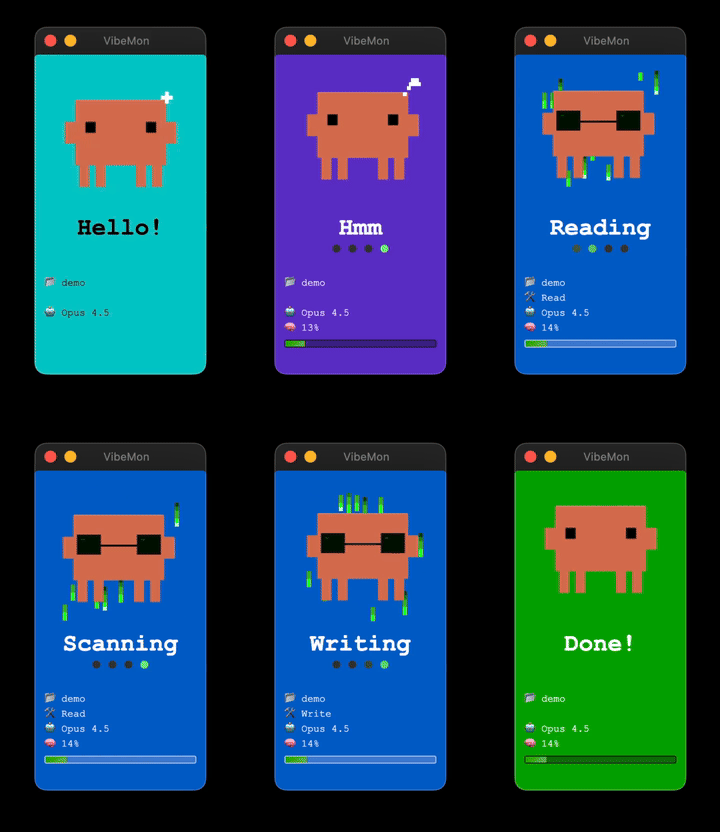
Preview
Documentation
Setup & Configuration:
- ESP32 Setup Guide - WiFi provisioning, WebSocket token configuration
- Desktop App - npm package installation and usage
Reference:
- Features - States, animations, window modes
- API Reference - Complete HTTP API documentation
For detailed installation instructions, visit vibemon.io/docs.
States
| State | Color | Description |
|---|---|---|
start |
Cyan | Session begins |
idle |
Green | Waiting for input |
thinking |
Purple | Processing prompt |
planning |
Teal | Plan mode active |
working |
Blue | Tool executing |
packing |
Gray | Context compacting |
notification |
Yellow | User input needed |
done |
Green | Tool completed |
sleep |
Navy | 5min inactivity |
alert |
Red | Critical error/failure |
See Features for animations, working state text, and more.
Characters
| Character | Color | Auto-selected for |
|---|---|---|
apto |
Gray-Purple | Apto |
clawd |
Orange | Claude Code |
kiro |
White | Kiro |
claw |
Red | OpenClaw |
HTTP API
Default port: 19280
POST /status
Update monitor status:
curl -X POST http://127.0.0.1:19280/status \
  -H "Content-Type: application/json" \
  -d '{"state":"working","tool":"Bash","project":"my-project"}'
GET /status
Get all windows’ status:
curl http://127.0.0.1:19280/status
POST /quit
Stop the application:
curl -X POST http://127.0.0.1:19280/quit
See API Reference for all endpoints.
Window Mode
| Mode | Description |
|---|---|
multi |
One window per project (max 5) - Default |
single |
One window with project lock support |
Switch via system tray menu or API:
curl -X POST http://127.0.0.1:19280/window-mode \
  -H "Content-Type: application/json" \
  -d '{"mode":"single"}'
Project Lock
Lock the monitor to a specific project (single-window mode only):
# Lock
python3 ~/.claude/hooks/vibemon.py --lock

# Unlock
python3 ~/.claude/hooks/vibemon.py --unlock
See Features for lock modes and CLI commands.
Desktop App Features
- Frameless window - Clean floating design
- Always on Top - Stays visible above other windows
- System Tray - Quick access from menubar
- Multi-window - One window per project (up to 5)
- Snap to corner - Auto-snaps near screen edges
- Click to focus - Switch to iTerm2/Ghostty tab (macOS)
- Open at Login - Auto-start on macOS login (configurable via tray menu)
Troubleshooting
Desktop App
| Issue | Solution |
|---|---|
| Window not appearing | Check system tray, or run curl -X POST http://127.0.0.1:19280/show |
| Port already in use | Check with lsof -i :19280 |
| Hook not working | Verify Python 3: python3 --version |
ESP32 Hardware
| Issue | Solution |
|---|---|
| Captive portal doesn’t open | Navigate to http://192.168.4.1 manually |
| WiFi connection fails | Check password, ensure 2.4GHz network |
| Device won’t enter setup mode | Send POST /wifi-reset to clear credentials |
See ESP32 Setup Guide for detailed troubleshooting.
Version History
- v1.9: Electron 35 security upgrade (ASAR Integrity Bypass fix)
- v1.8: Alert state (red, always-on-top), exclamation mark effect on ESP32
- v1.7: Open at Login option, Always on Top menu reordering, working state text standardized
- v1.6: ESP32 display layout improvements, code refactoring
- v1.5: WebSocket support, new apto character, static engine CDN
- v1.4: New claw character, ESP32 claw support, image-based character rendering
- v1.3: Multi-window mode, window mode API, enhanced lock modes
- v1.2: Project lock, modular architecture, npx support
- v1.1: Desktop app, system tray, memory bar gradient
- v1.0: Pixel art character, web simulator
License
MIT