vibemon-app
VibeMon



Real-time status monitor for AI assistants with pixel art character display.
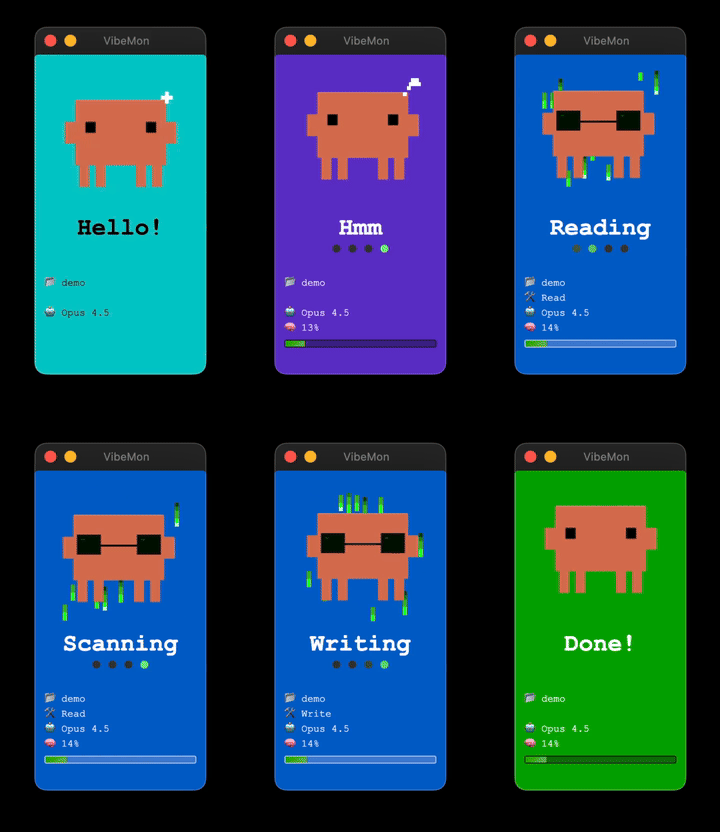
See at a glance what your AI assistant is doing — thinking, working, or waiting for input. A cute pixel art character visually represents the current state.
Supported Tools
| Tool | Description |
|---|---|
| Claude Code | Anthropic’s official AI coding assistant |
| Codex | OpenAI’s AI coding agent |
| Kiro | AWS’s AI coding assistant |
| OpenClaw | Open-source computer use agent |
Agent Integration Model
VibeMon does not talk to agent runtimes directly. Each supported agent is bridged into the same status payload and then rendered by the Desktop App or ESP32 display.
| Agent | Bridge type | Tool visibility | Notes |
|---|---|---|---|
| Claude Code | Native hooks | Broad | Best documented lifecycle and tool coverage |
| Codex | Native hooks + codex exec --json |
Partial in interactive mode, broad in automation | Interactive hooks are experimental and currently Bash-focused |
| Kiro | Native hooks | Broad | Good tool-level hooks with MCP-aware tool names |
| OpenClaw | Plugin bridge | Plugin-dependent | Uses plugin SDK hooks rather than the simpler internal hook system |
Support Quality
- Claude Code: Richest hook surface. Best fit for real-time state, permissions, compacting, and subagent-aware monitoring.
- Codex: Strong support, but split by mode. Interactive sessions expose limited tool hooks today, while
codex exec --jsonis better for CI and automation. - Kiro: Clean hook model for prompt, tool, and stop events. Practical fit for real-time monitoring.
- OpenClaw: Best supported through plugins. Internal hooks are session/message oriented, so plugin SDK integration is the right path for VibeMon.
What It Monitors
| Field | Description | Example |
|---|---|---|
| State | Current activity state | working, idle, notification |
| Project | Active project directory | vibemon-app |
| Tool | Currently executing tool | Bash, Read, Edit |
| Model | Active model | Opus 4.5, Sonnet |
| Memory | Context window usage | 45% |
Quick Start
Desktop App
npx vibemon
That’s it! The app launches in the system tray and listens on http://127.0.0.1:19280.
ESP32 Hardware
- Set
BOARD_TYPEincredentials.hand flash firmware (ESP32-C6-LCD-1.47 or 1.9) - Device creates WiFi AP:
VibeMon-Setup(password:vibemon123) - Connect and configure WiFi + WebSocket token via web interface
- Device connects and displays AI assistant status
See ESP32 Setup Guide for detailed instructions.
Preview
Platforms
| Platform | Description | Best For |
|---|---|---|
| ESP32 Hardware | Dedicated LCD display (172×320 or 170×320, selected via BOARD_TYPE) |
Primary, always-on desk companion |
| Desktop App | Electron app with system tray | Alternative for non-hardware users |
Documentation
- Features - States, animations, window modes
- API Reference - Complete HTTP API documentation
- ESP32 Setup Guide - WiFi provisioning, WebSocket token configuration
For full documentation, visit vibemon.io/docs.
States
| State | Color | Description |
|---|---|---|
start |
Cyan | Session begins |
idle |
Green | Waiting for input |
thinking |
Purple | Processing prompt |
planning |
Teal | Plan mode active |
working |
Blue | Tool executing |
packing |
Gray | Context compacting |
notification |
Yellow | User input needed |
done |
Green | Tool completed |
sleep |
Navy | 5min inactivity |
alert |
Red | Critical error/failure |
See Features for animations, working state text, and more.
Characters
| Character | Color | Auto-selected for |
|---|---|---|
clawd |
Orange | Claude Code |
codex |
Green | Codex |
kiro |
White | Kiro |
claw |
Red | OpenClaw |
HTTP API
Default port: 19280
POST /status
Update monitor status:
curl -X POST http://127.0.0.1:19280/status \
  -H "Content-Type: application/json" \
  -d '{"state":"working","tool":"Bash","project":"my-project"}'
GET /status
Get all windows’ status:
curl http://127.0.0.1:19280/status
POST /quit
Stop the application:
curl -X POST http://127.0.0.1:19280/quit
See API Reference for all endpoints.
Window Mode
| Mode | Description |
|---|---|
multi |
One window per project (max 5) - Default |
single |
One window with project lock support |
Switch via system tray menu or API:
curl -X POST http://127.0.0.1:19280/window-mode \
  -H "Content-Type: application/json" \
  -d '{"mode":"single"}'
Project Lock
Lock the monitor to a specific project (single-window mode only):
# Claude Code / Codex / Kiro bridge
python3 ~/.claude/hooks/vibemon.py --lock

# Unlock
python3 ~/.claude/hooks/vibemon.py --unlock
Use the matching bridge path for your agent (~/.claude/hooks, ~/.codex/hooks, or ~/.kiro/hooks). OpenClaw uses its plugin bridge rather than a Python hook command.
See Features for lock modes and bridge notes.
Troubleshooting
| Issue | Solution |
|---|---|
| Window not appearing | Check system tray, or run curl -X POST http://127.0.0.1:19280/show |
| Port already in use | Check with lsof -i :19280 |
| Hook not working | Verify Python 3: python3 --version |
| Captive portal doesn’t open | Navigate to http://192.168.4.1 manually |
| WiFi connection fails | Check password, ensure 2.4GHz network |
| Device won’t enter setup mode | Send POST /wifi-reset to clear credentials |
See Features for desktop app details, ESP32 Setup Guide for hardware troubleshooting.
License
MIT