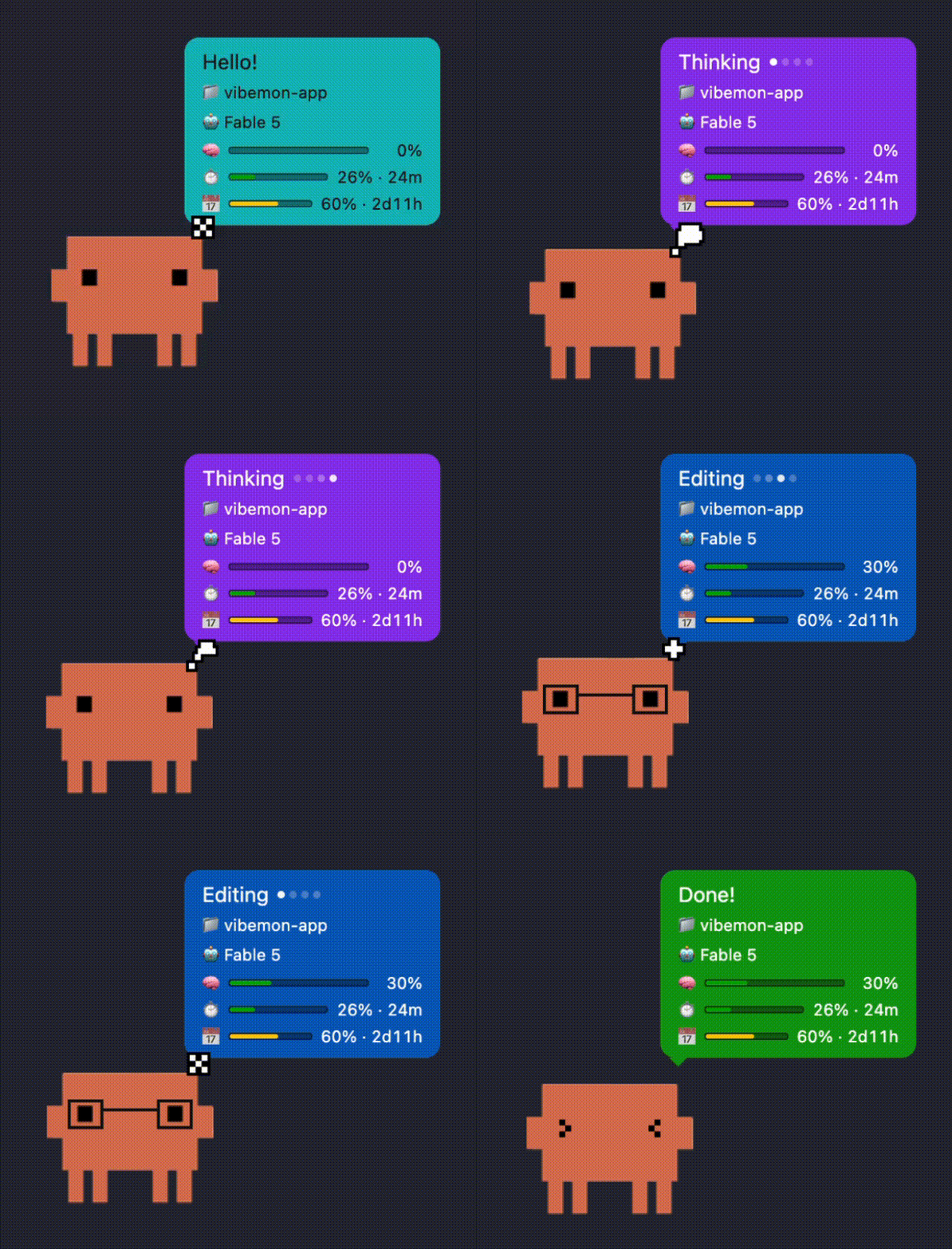
VibeMon — the app I introduced in my previous post that shows what your AI coding assistant is doing right now as a pixel art character — just hit 2.0.
The Desktop App installs with brew:
brew tap opspresso/tap
brew install opspresso/tap/vibemon
Five things changed in this upgrade.
1. Character Mode Only
Version 1.x tried to do too much. A multi-window mode that spawned one window per project, plus several display modes on top. Run a few sessions at once and your screen filled up with characters — while “what’s actually happening right now” got harder to see, not easier.
2.0 cuts all of that. There’s exactly one character with a speech bubble following it — that’s it. Run multiple projects at the same time and the character switches to “the session you should be watching” on its own. The project that’s busy working keeps the character, and the moment another project needs your input, it jumps over there.
One character moving smartly beats three characters floating around.
2. New Characters: vibemon and daangni
The lineup grew by two.
| Character | Look | For |
|---|---|---|
| vibemon | Purple robot | Default character (new) |
| clawd | Orange | Claude Code |
| kiro | White ghost | AWS Kiro |
| claw | Red | OpenClaw |
| daangni | Peach/teal | Manual selection only (new) |
The new default character vibemon is a purple robot. And daangni — if it looks familiar, that’s not your imagination.
Got a favorite? Pin it with Character Lock and you’ll see that character no matter which AI tool is reporting. That’s also how you use characters like daangni that aren’t mapped to a specific tool.
3. Install and Configure, All Inside the App
VibeMon used to take some manual work. You had to run an install script in the terminal to set up the per-tool integrations (hooks), and edit config files by hand.
In 2.0, all of that moved into the Settings window. The app detects which AI tools are installed locally (Claude Code, Codex CLI, Kiro IDE, OpenClaw), and if one isn’t wired up yet, a single click installs the integration. The status collector config is managed by the app directly too.
No terminal needed — it’s pretty close to “install the app and you’re done.”
4. Auto Update
When a new version ships, the app tells you. An “⬆ Update to vX” item appears in the tray menu, and one click takes care of everything from download to restart.
One rule though — downloads never start on their own. Only the notification is automatic; the actual update happens only when you click. It will never restart itself in the middle of your work.
5. Time Until Usage Resets
Claude plans come with 5-hour and weekly usage limits. When you hit the limit mid-session, there’s really only one question — “so when does it reset?”
Now the speech bubble answers.
🧠 ████████░░  42%          ← context window
⏲️ ███░░░░░░░  26% · 24m    ← 5-hour usage, resets in 24 minutes
📅 ██████░░░░  60% · 2d11h  ← weekly usage, resets in 2 days 11 hours
Next to each usage percentage, the time until reset shows up in a compact format like 24m, 2h5m, or 2d11h. Knowing in advance that a coffee break is all it takes — that’s a bigger quality-of-life difference than you’d think.
Wrapping Up
If 1.x was about stacking up features, 2.0 was about cleaning up and polishing. One smart window instead of five, a Settings window instead of a terminal, and a speech bubble that answers “when does it reset?”
The little pixel character is hard at work on the corner of my desk today, too.
Links:
- Dashboard: vibemon.io
- GitHub: opspresso/vibemon-app, opspresso/vibemon-esp32
- Previous posts: Making VibeMon, ESP32 Setup Guide